About Chris

This author has not yet filled in any details.
So far Chris has created 17 blog entries.

TourPro Data Center Maintenance Weekend Sept 26-28th

Hey Everyone!

Just wanted to let you know we have planned for some data center maintenance this weekend starting this Friday night around 8pm EST.  During this time we will be working on an upgrade to the storage systems that house and run your servers applying security patches, bug fixes and other updates by the vendors.

To do this we will be shutting down the servers, one at a time, and then migrating them to our other storage platforms.  Effectively this will be a brown-out stopping your registration site, web version of TourPro and syncing temporarily.   This process can take 30 minutes to an hour depending on the server. Once moved, we will start it back up and your server and you can continue.  You can continue to use your desktop syncing versions of TourPro without issue.  If you notice the website/web version and syncing are offline please wait about an hour and then try again.

Once the servers are moved, we will perform the upgrades on our storage system, run tests and then reverse the process to put your servers back on the storage system.

This should cause as minimal interruption to your workflows as possible but necessary to accomplish prior to the season really kicking off in the coming month!

If you have any questions please let us know if you have any questions by contacting our help desk.


All the Best,

Team TourPro

By |2025-09-29T12:44:51-07:00September 25th, 2025|Uncategorized|Comments Off on TourPro Data Center Maintenance Weekend Sept 26-28th

Upgrade Now for TourPro 2026

Hey Everyone!

We wanted to say congratulations on yet another long but incredible tour season!  We have been hard at work implementing new improvements to the TourPro platform and experience to improve your every day and weekends from more automatic features and abilities to performance across the board!

If you are now fully done with your Nationals events, NOW is the time to upgrade your Macs to the latest macOS Sequoia 15.5 and iOS/iPadOS before you put your computers away before the next tour.  At this time the latest OSes are the most stable and we highly recommend you upgrade to them now as to save time as the next season approaches quickly!  Before you go out this next season, we will let you know which updates you will need to finish up your systems (BlackMagic, MimoLive, Focusrite Drivers).

Please note that TourPro 2026 will support macOS Sonoma (14.0) macOS Sequoia (15.0) and after testing is completed and it is certified macOS Tahoe (26).   Any Mac that cannot run Sonoma will need to be replaced.  When macOS Tahoe is released – DO NOT UPGRADE IMMEDIATELY to it for your Production systems.  The following Macs will need to be retired if you are still using any of them:

  • MacBook: All pre‑2018 Intel MacBooks, including the final 12″ MacBook (2015–2017)

  • MacBook Air: 2017 and earlier

  • MacBook Pro: 2017 and earlier (including 13″ and 15″ models)

  • iMac: 2017 and 2018 models (Retina), also non-Retina iMacs before 2019

  • Mac mini: Models prior to 2018, including 2014–2017

  • Mac Pro: The widely used 2013 “trashcan” Mac Pro isn’t supported; Sonoma requires 2019 or newer

  • MacBook (12‑inch): The last 12″ subcompact model (2015–2017)


As we finish up the final touches and changes to TourPro 2026 we will reach out to you to schedule your upgrade!

Please feel free to reach out to [email protected] at any time for help!


All the best,

Team TourPro!

By |2025-07-22T11:12:41-07:00July 18th, 2025|Uncategorized|Comments Off on Upgrade Now for TourPro 2026

Top Of The Year Reminders

Hi There Everyone!

We wanted to put out a reminder as the season is well under way for everyone.  Here are a few very important notices!

  1. We have recommended macOS Sonoma as the version for all of your Macs this season.  The current release is 14.7.4 and we recommend running 14.7 to version 14.7.4.
  2. Sequoia (macOS 15.x) has not been recommended. If you have upgraded your Macs to Sequoia it is URGENT that you upgrade Sequoia to the latest version (15.3.1 as of now).  macOS Sequoia versions less than 15.3.1 have known issues with connected devices and could impact the reliability of running your events.
  3. When using iPads ensure your permissions are set properly 
  4. Media Assistant Users – Be sure you’re running the latest version here Be sure to have your company code available, reach out to our support if you need it.
  5. If you are having issues uploading please download the updated sync tools here.  Install the downloaded package on your Media Assistant systems to restore syncing reliability.
  6. We recommend the use of a UPS battery backup for your sensitive devices (Cameras, Video Equipment, Network Gear etc).  This will help with preserving your equipment in the case of a power surge or drop in power and help prolong the life of your equipment as you go from venue to venue.


By |2025-02-25T15:56:49-08:00February 25th, 2025|Uncategorized|Comments Off on Top Of The Year Reminders

Get Ready for TourPro 2025

Prepare your Company and Computers for TourPro 2025

TourPro 2025 has some amazing new features and improvements to make this upcoming (in some cases already started) season incredible. However, with this big of an upgrade there are some things you may need to do to get your systems up-to-speed.

It is necessary that ALL your systems (including ones in storage or elsewhere) get their OSes updated to ensure reliability in-running your events.

Once all your systems are up-to-date – contact us to schedule your TourPro 2025 update!!

We have an in-depth system requirements for all your computers available here: https://www.tourprosoftware.com/tourpro-system-requirements

Here are the basics
1. Macs need to be running macOS Ventura 13.6.7 up to macOS Sonoma 14.1 (SEQUOIA IS NOT RECOMMENDED AT THIS TIME )
2. iPads need to be up to ipadOS 16
3. PCs need to be running Windows 10 or 11.

You will not be able to receive the TourPro update until your systems are up-to-date. You can reach out our help desk. Please send an email to [email protected] to get assistance.

By |2024-11-13T16:20:19-08:00November 8th, 2024|Uncategorized|Comments Off on Get Ready for TourPro 2025

System Setup Complete

Congratulations Setup Has Started!

A request has been sent to our support team to add your computer to the Wonderful World of TourPro :)

If this is a new computer you are setting up we will use the email address and phone you entered to notify you when setup is completed and you can continue with the steps below.

If you previously had TourPro running on this system then you are good to proceed to the steps below as we have update the tools necessary to re-enable TourPro on this system.

Next Steps

1 Go to Your Mac’s Applications Folder and locate Managed Software Center

2. Click on Updates and Run All Updates to install TourPro Support Tools on your Mac. If you do not see any items, please wait for a response from TourPro Support in getting your Mac setup. If you didn’t fill out your information properly when running setup or put in fake information (shame on you…) re-run setup so we can notify you when completed.

3. When Prompted install the Available Updates until no more are left.

4. Go to Software in Managed Software Center to install other support apps as you may need like QLab, Focusrite Control, Loopback or VLC.

5. If you see an option called TourPro Support FM then feel free to click Update to update to the latest app version for your computer.

6. When installed your should have at minimum the following Apps in your Applications folder FileMaker Pro, SwiftCapture, MimoLive.

The next step is for you to login to TourPro Business Manager to gain access to the entire Suite of tools now at your disposal. To do so go to:

TourPro Business Manager – https://www.tourprosoftware.com/manager

Use your email address and choose Forgot Password if you don’t know your password to have it sent to you. Reset the password and then login to your Manager. In the case that you do not have a password reset email, please contact us by emailing [email protected] to ensure you have the proper email/account setup.

With the support tools installed and ready to go you may now download the TourPro file from the email you received from TourPro support or your TourPro Business Manager Portal and get to it! Always remember you have access to the web version of your TourPro system located at your registration site /tourpro. For example if my registration site was https://superdance.mydanceregister.com then if I go to https://superdance.mydanceregister.com/tourpro I will be taken to my system login page.

By |2024-06-09T13:44:18-07:00April 26th, 2024|Uncategorized|Comments Off on System Setup Complete

TourPro Oct 26 Unplanned Outage

Hello TourPro land.

As many of you know we lost connectivity to the servers today, October 26th.  As of 5:30pst services were restored for all customers and systems are operating as expected.  We will be doing a review of the servers tonight and throughout the weekend.

Our goal, of course, is to maintain availability to your systems 24/7 and we take as many precautions as necessary to do so including extensive backups, server snapshots and other forms of replication and failover.

The outage happened around 11:30am PST and was initially believed to be a network routing issue, as was initially reported to some users.  It is now believed that our backup system that takes snapshots of all client servers attempted to purge multiple copies (lots of data) of the snapshots caused the storage system hosting the systems to slow.  They didn’t fully stop, however they crawled to a point where it seemed as such.

We have disabled this feature as well as a replication process to maintain performance of the platform for the rest of this week and weekend and will be making appropriate changes at the beginning of next week to prevent this action from happening in the future.

Thank you for your patience during this unplanned outage and please feel free to reach out to us at our help desk if you have any questions or issues.

By |2023-10-26T19:38:14-07:00October 26th, 2023|Uncategorized|Comments Off on TourPro Oct 26 Unplanned Outage

Meet TourPro 2024!


Version 2024 (not 8..)

09/6/2023

Internal Use Only –
This is considered confidential and proprietary and is only intended for use by TourPro customers. Sharing outside of your organization is strictly prohibited and considered a violation of your agreement.

Happy Registration Season TourPro Land!

We are excited to kick off this new season by jumping ahead not to 8… but all the way to 2024. The new naming should help to ensure that all your users are in the current version for the active season and it also represents a major jump in the platform.   With TourPro 2024 you will see a massive increase in overall performance and usability.

We have begun rolling out the 2024 updates but please know there are likely two more updates that are on their way. Each of these updates will add to improved speed of the system both on your computers and on the web.  While we tend to add a lot and improve the platform every year, this version has allowed us the opportunity to improve core components of the system to bring dramatic improvements in speed and reliability as we work to extend our capabilities for every one of your situations.

  • Data Center Upgrades are already helping everyone with improved speed on the registration portals.
  • Users of TourPro 2024 will notice a massive performance boost to the web-based version – to see for yourself go to your registration site: https://mysite.mydanceregister.com/tourpro and login using your username and password. (replace mysite with your company in the example).
  • TourPro 2024 will also help with Syncing speeds. As of this publishing, we’ve been able to improve syncing speeds between 68% and 86% depending if you are downloading changes from the server, or pushing your changes to the server.
  • We expect to further improve syncing and app performance in the near future on top of what TourPro 2024 provides over TourPro 7. We’ll be updating your FileMaker application and TourPro as soon as the update is available. We can’t wait to get this to you.

This 2024 update includes all changes since the last Major update to Version 7. We are still working on a few promised updates that will make their way into the final Winter release for the season in addition to the performance improvements described above. Please remember that while some changes can be made quickly, many changes require more time and must be prioritized and scheduled across all requests. Remember to get your requests in as early as possible! Submit a ticket to [email protected] when inspiration finds you.

This guide is meant as a summary of new features and updates. Please submit a request through the TourPro app to set up a time where we can review any features in greater detail with you.

Development Schedule and Policy

Please take a moment to review the TourPro Policy located below and at the bottom-right of the Main TourPro screen. As discussed in the Policy, this calendar describes our development cycle. Our goal is to do a final update prior to the season to avoid updates during the season and provide the most stable and error-free platform possible.

https://tpmanage2.tourprosoftware.com/docs/TourProPolicies.pdf

Major Highlights

  • Significantly Faster Web Version and Registration Website Performance
  • Massive Improvement in Sync Speeds
  • New Media Website
  • ACH Added for Stripe Users
  • Automated Backups of Performance Order
  • New coupon conditions
  • Streamlined Backstage iPad for better performance and usability
  • Continued Fine-tuning across the board to improve your experience

Registration Website

Media Manager

Added ability to upload .mov, .m4v and .hvec for video


Added the attendee’s birthdate to the Registration Detail on Closed Registrations so they can see what they entered for when they are filling in the waiver.

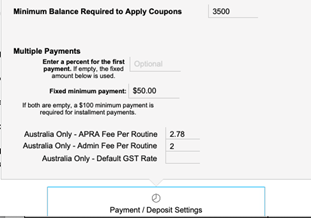
Enforced Deposit Fees – Grace Number of Routines When a Studio makes a deposit based on the number of routines, but ends up bringing less, you can apply a penalty for not bringing the number of routines they said they would.

A new “Grace Quantity Allowed” has been added so that the penalty will not be applied if the difference between the requested amount and final number of routines they are bringing is less than that amount.

Attendee Add-On Updates

  1. If there is only one add-on, the website will display the name of the add-on as the name of the Column so they can quickly select that item instead of using the button.
  2. You can name the button in preferences – go to Preferences -> Behavior -> General
  1. You can rename the button / column on a per-Event basis. Season Control->Edit the Event-> Add-Ons -> Attendee Addons -> “Website Name Event Override” at the bottom of the screen
  1. You can make Add-ons only available for those that have a scholarship. Season Control->Edit the Event-> Add-Ons -> Attendee Addons -> “Addons Require Scholarship for this Event” at the bottom of the screen. Once the Scholarship added the Add-on button becomes available.
  1. You can indicate that an Add-on will provide a discount on a Routine and if it requires a Solo to get the discount. Season Control->Edit the Event-> Add-Ons -> Attendee Addons -> ellipses button (…).

Use these features independently or together to create unique programs for your events.

1)

2)

3)

5)

Registrations

Season Overview

Added a new percentage view of Registered vs Event Routine capacity allowed with color coding based on reserved versus actual registered routines to display how full each city is.

Home Page-> Season Overview Button-Season View

Added totals for event discount.

Home Page-> Season Overview Button-Detail -> Discount Details Tab

Improved Viewing of Attendee Quantity Graphs


Importing Enhancements

We’ve added support for up to 7 levels of attendees, in addition to Special Needs and Virtual types. We configure these for you to provide the best matching between systems as is possible.

Over-request / over-capacity messages: When a studio imports their registration from another competition/convention, and the registration is either more than they reserved or is more than the remaining capacity of the event, both you and the studio will receive a warning email describing the overage. In addition, the error is identified on the Studios registration. Please remember that during checkout it will NOT allow them to continue in this circumstance, but on the back end the event may appear to be oversold. Once they delete their routines there will not be a problem. Before manually closing registrations make sure to look for overages

Example message you may receive:

Registration IMPORTED WITH CAPACITY ALERT For I Love 2 Dance

Tour Pro Action: Studio Imported Registration from partner Dance Fever

I Love 2 Dance has imported a registration from another competition for I Love 2 Dance at Las Vegas 2024.

A warning message was provided to them: You have entered 20 total routine(s) but there are 10 allowed and 5 solo(s) but there are 3 allowed based on the number of attendees you are bringing. Please contact us if you need assistance.

Strict Reservation Enforcement

A new option allows you to enforce the amount reserved in solo and group categories.

Previously the system would treat all routines as equal (Solo, Duo/Trio, and Groups) so that during checkout it would only compare the total routines reserved against the total routines registered. You can turn on this preference for the system overall, or just by event to limit them by size. For example, if they requested 5 solos, 2 duo/trios, and 3 groups (10 total routines), but registered 10 solos – the system will prevent that. They will receive a message on the website communicating what they reserved and what they have registered.

If you are allowing routine reservations based on the number of attendees, this preference is required to keep the studio within their requested amount.

For the entire system

Preferences -> Behavior -> Registration


For a specific event

Season Control -> Current Season -> Edit Event -> Edit Event Details -> Deposit Settings


50% Rule Preference

A standard way of doing a 50% rule has been added and can be enabled by a preference. This method ensures that a routine must have more than 50% different dancers for the same level, size, subject and age. When a routine violates that rule a message is displayed on the offending routine and they may not finalize the registration.

Preferences -> Behavior -> Routine Rules

When a Registration is Moved or Duplicated

  • For events that are using reservations, when you move or duplicate a registration to that event, it will now bring you to the Agreements and Reservations screen for the new registration so you can quickly enter the required information.
  • it will add ask if you want to automatically add, clear, or keep the Attendee Add-ons.

Easily Make an Event Private Without A Password

You can “hide” an event from the available events entirely by selecting the “Make Event Private (Hidden)” checkbox in Season Control-> Edit Current Season -> Click to Edit the Event -> the First Popover. You will manually add your studios to that event with the TourPro App. Once you sync, they will see the registration in their Open Registrations.

Alternatively, you can add a password to an Event where they can register if they know the password. To do that, click Edit one more time – in Additional Controls -> Web Controls you will find the Password Protect the Event setting.

Added Registration Addon 5160 Label option to Registrations > Summary > Add-ons & Adjustments
as well as Event Check-In under Add-Ons at the bottom


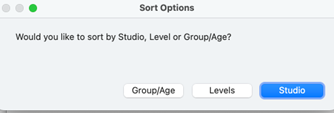
Added Sort Options to Reg List view to sort by Studio Name or Event Start Date

Registrations by Event, or, when viewing a registration by Studio, click the Reg List tab to see the list of registrations.


Account Types that you allow to create accounts can be changed in Preferences, however, this will not disable existing accounts that are no longer allowed. This only changes the New Account Form where a user selects the type of account that they are.

Preferences -> Behavior -> General


Registration / Financial

Limit Routine Fees by Account Type

For each size routine you can specify which account types that combination of size and price are available. This allows you to have different prices for the same size – for example – Independents pay x for a solo, while Studios pay z.

Preferences -> Pricing -> Routine Fees – Select the Tier – For each Group Size, click the Time & Rules column. Select which account type has access to that Size / Price. Make multiple group sizes and apply one account type to each. For example, Solo size, Independent Account Type Limiter. Solo size, Studio Account Type Limiter.

ACH Processing Added for Stripe Users

If you are a Stripe User for Credit Card processing, we can now enable ACH payments.

During payment, the user selects ACH as the payment method.

Instead of going to the Credit Card screen, they will be asked to enter their US bank account information. The Stripe Interface allows them to enter their bank information or select an existing account. Once connected they click to Pay.

ACH can take several days to reconcile the payment – during that time, TourPro assumes the payment is valid. When the final payment is processed, TourPro will finalize the ACH Status. If the status is not approved / successful, it will leave the payment but indicate that it was not approved.

The payment appears in the Summary Tab. The status will say Processing until it has been reconciled. You can check the status at any time by clicking the status (i.e. Processing) in the Summary area. The system will check the status of all outstanding ACH payments daily.

The ACH transaction type has been added to Back Office -> Transaction Reports and the Registration Dashboard (Event Manager -> Registration Dashboard) when clicking in the (i) icon in the Paid column.

Please contact us if you would like to use ACH. Please note there is a .5% platform fee for this option. However, this is still much less than typical credit card fees.

During Checkout

Status Review Flag for Each Registration will let you denote if you have review the registration for errors. If a registration has an error, it will still prevent the user from checking out and will require the registration be closed by you. The Studio can pay for the registration by using the Make a Payment link in the registration site header.

Accepting Payments for registrations in progress can be done with a new preference: “Allow Additional Payments if Event is upcoming and Reg is Open”

Preferences –> Behavior -> Registration

Registration/Notes

Added Import Notes and Moved Automatic Internal Registration Notes to a new tab. The “History” tab will include the history of opening and closing registrations, importing history with results and other functions.

Registration / Attendees

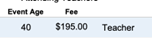
Added Manual Fee Override and Subtype Selection for Attendees

In the Registration, click on the Attendees Name – click the ellipses (…) next to the Subtype and you can select anything you want!

This will let you also select a type outside of the current category, for example, teacher types for students.

Registration / Routines

Ability to Add Multiple Routines Quickly

From the Routines tab, you can select to add Multi Routines. The system will ask how many placeholders you want to create so you can more quickly add “placeholder” routies.

The Routine tab in a registration will turn blue once music has been uploaded for every routine


Routine Error Updates

  • Combined the messages underneath the Routine Errors tab.
  • Added an “Override Routine Errors” checkbox to permanently allow the routine to skip without error.

Note –

There are 2 kinds of routine errors.

Some errors are displayed immediately, for example, if the Size category needs to be selected, or the Style is missing – the top section displays those immediate errors.

The Routine Makeup Errors are only evaluated during checkout. A Routine Error may become a Routine Makeup Error, but there are other situations that may cause a Routine Makeup Error that can only be checked when the registration is complete.

“Scratch” has been added while editing a routine. If you know about
the scratch prior to the event you can mark it here.

Competition

General Competition

Routine Leveling Changes

  • Added support for Special Needs
    • With Auto-Leveling, Special Needs will be treated as a level lower than 1.
  • Added “Must Compete in Level”
    • With Auto-Leveling If you want Special Needs or other level to be required to only compete with others of the same level, checkmark this setting.
  • Supports 7 Levels of Attendee Types plus Special Needs and Virtual for both importing and auto-leveling.
  • Added new automatic leveling option to specify a percentage using the Average method.
  • Automatic leveling now supports different kinds of attendees at different events. For each attendee type, click the “Evaluates To…” and select the specialized division or point scale that person would be assigned if performing a solo.
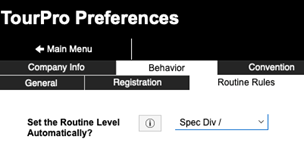
  • Leveling Options (on the Convention tab or Preferences -> Behavior -> Routine Rules) let you specify which leveling method to use during importing from partners (Specialized Division or Point Scales) and method for assigning the Level –Specialized Division or Point Scale, and Point, Average % or Formula
  • Points – using the points in the level drop down menu – it calculates the number of dancers in that level. The level with the most points wins.
    • 2 Dancers * Level 1 (Beginner) = 2 points
    • 1 Dancer * Level 2 (Intermediate) = 2 points
    • Evaluates to Level 2 Intermediate because it goes to the highest in case of tie
  • Average %
    • Once the specified percentage is obtained by adding the dancers from the higher levels first, then that is the level.
    • 4 Dancers in Level 3 (Advanced),
    • 3 Dancers in Level 2 (Intermediate)
    • 5 Dancers in Level 1 (Beginner)
    • 4 Advanced + 3 Intermediate is ≥ 49% so this would resolve to level 2 (Intermediate).
  • Average Formula
    • Similar to Average % – the difference is if the routine has all three levels (in a three-level system) a mathematical formula is used to determine the result.

Please contact us for help with setting up or changing your leveling.


Automatic Adjudication Only and Extended Scoring

Point Scales can now be configured for Adjudication Only.

Point Scales, Specialized Division and Group Sizes can be configured to automatically enable extended scoring.

Preferences -> Competition, Preferences -> Judging & Awards


Tiebreaking Options

Previously tie breaking of a routine was accomplished by using the Tie Priority in preferences to weigh a Judging Category more heavily. If the total score is the same between routines, it will evaluate which routine has the combined total of the category marked the highest, next highest, and so on to determine the winner.

A new option has been added to exclude one or more judges from tie-breaking. For example, if you want a “lead judge” to be the tie-breaker you could exclude the other 2 judges from the Tie-Breaker.


Scheduling

Schedule Backup / Restore Features

AutoBackup – The system will now automatically make a backup of your performance order whenever you go in to edit the order. You can also click the Backup Now button to do a quick backup before you do anything such as Reorder & Number that may need to be undone.

The Backup History is available with the date and time of the backup, and which computer created the backup.

You can rename the Backup to help identify which backup is which!

Click the View Magnifying Glass to see a quick preview of the performance order that was saved in that backup.

Click the arrow to restore a backup…

There’s also a locking and unlocking History.

Remember – you can also lock the performance order to prevent inadvertent changes from the Performance Order Editor on the top-right side of the screen.

New Sorts Added:

  • Specialized Division (level), Group Size, Subject, Age Division
  • Age Division, Average Age

Adjusted Competition Mini View

  • Shows the color of the Age Division when that is configured in Preferences -> Competition
  • Adjusted display of the routine information


Added Coloration to the Actual vs Estimate schedule button in Block Scheduling Manager to make it obvious when you’ve switched modes.

Actual mode is the start time and dates used when you reflow the times.

Estimate mode allows you to shuffle things around so you can see when things would end by placing “Anchor” times. Estimate mode requires that you Set the Actual Schedule from Estimate to make that timing permanent.

If you are using a server in your office, the speed of
Block creation has been improved by moving the task of creating the blocks to the server. You should not notice any difference other than the speed.

Competition / Competition Monitor

Miscellaneous Additions

  • Added ability for Tabulator to delete nominations.
  • Fixed adding a Judge Note and added Delete button to Judge Notes in Judge Monitor.
  • Added Props information next to the On Deck / Tracker Next button.
  • Added Student Choreography checkbox in the Edit Routine Details popover.

Added Print Individual Dymo Label under Edit Routine Details to print a label with adjudication.
Automatic Updating of Scores When Locking/Unlocking to reduce the need for manual refreshing.

When you click to lock or unlock the scoring, the system will perform the same function as when you click the “Refresh” button on the bottom right and should reduce your need to do so.

Added Routine-specific manual drop of high/low scores to help fine-tune an individual routine.

Click Edit Routine Details inside the Competition Monitor and locate the Ignore High/Low Setting area and Routine Specific High Low number.

Note – the “Remove Judge Scores” must be activated for that Event

Season Control -> Edit Current Season -> Edit Event -> Event Limits and Judging.


Competition / Reporting

New Reports have been added:

Show Order

Schedule Outline – Simple

  • Day and Session Summary
  • #, Studio Code, Routine Name, Perf. Time

Routine and Choreographer 8.5 X 11

  • #, Routine Name, Age Group/Style, Choreographer, Studio

Routine and Choreographer 8.5 X 11 with Soloists

  • #, Routine Name, Soloist, Choreographer, Studio
  • With Category

Announcer 8.5 x 11 – MC/Emcee

  • Performance Order, Routine/Studio, Category, Studio Code, Staging (Entrance/Exit), Props Yes/No with Description, Music Length (as uploaded) and Performance Time

Schedule – Routines Per Session by Studio (DETAIL)

  • Prints a separate page for each studio and routine performance times with place for studio to track Medals and Ranking.

Final Score Summaries

In10sity – Overall Report Descending

ADA – Choreographer

ADA – Medal Standings

ADA – Overalls by Extended

ADA – Overalls – Host

ADA – Overalls – Tab

Announcer – Routines by Style

On The Fly

Grand Champ -> Title Solo

  • total/average top x routines separated by soloist

Modifications to Existing Reports

True Talent report can be modified by the preference setting Preferences->Behavior->Reporting/Printing

NRG Show Order Report Footer has been expanded to 2 lines to account for long descriptions.

Routine and Choreographer 8.5 X 11 will ask if you want to include the Studio

Trophy Labels can be so that your placements can be designated rather than the default

Preferences -> Behavior -> Reporting/Printing

Remember you can click the Enable Custom Lists button to make the drop-down list only contain the reports that are relevant to you. Click Enable Custom Lists, then check the reports that you want to display in the drop down.

Announcer – Routines by Style

Competition Award Presets

Style, Specialized Division and Point Scale options can now select multiple options. Previously only one selection per preset was allowed.

Click on the field and checkmark the ones that you want to include.

New Warning when running a Competition Award Preset – if there are routines that would qualify for the preset, but are not scored yet it will warn you. For example, a routine that should perform Friday night is moved to Saturday and you try to run the report on Friday, it will warn you about the routine that was moved.

*Excludes the setting for Minimum Score


Two New Methods for Top X

There are many different rules for the placement of routines when running your Competition presets. For example, do you always “place” the top 6 – or only the top 5 unless there are 10 in the category?

We’ve added 2 new methods.

– 1,3(5-9),5(10-14),10(15+)

– 1,3(5-9),5(10-14),10(20+)

For example, 1,3(5-9),5(10-14),10(15+)
would place:

1 top placement – if there is at least one routine

3 top placements – if there are at least 5 and less than 10 routines

5 top placements – if there are at least 10 and less than 15 routines

10 top placements – if there are at least 15 routines

Preferences -> Behavior –> Judging/Scoring -> Award Sheet Placement

New Method for Trophy Counts

You can now export a Trophy Count spreadsheet at the bottom of the Award Presets menu. Using Competition Award Presets, the trophies will be counted in the exact way your presets are run.

You can also choose to exclude presets and/or group them on the report. While editing your Presets, find the new button Trophy Count.

iPad Competition Reports can now be sorted by the preset priority rather than creation order.

Previously the reports would be sorted only in the order that the reports were created. If your Award Ceremonies always have the same flow, this allows you to print the reports while the occur, but have them sorted on the iPad in the order you would like to call them out.

To save reports to the iPad: Competition Manager -> Competition Monitor -> Live Reporting

To change the default sort, Preferences -> Behavior -> Reporting / Printing -> iPad Report Sort Priority.

Ability to Recount a Specific Competition Award Preset rather than all of them! The competition award presets can count the number of routines and eligible routines prior to and during competition to help you prepare for the flow of things. If there are minor changes to one or more routines, you can now click just on the impacted reports to run just those rather than recalculating all of them. Simply click on the number in the Count column


New Option for Competition “Scores By Studio”

You can now include only the top x routines in the Omit and Limit function.

Depending on your needs, note that the “On-the-Fly” reports also can do “Grand Champ” reports, which allow you to combine top scoring routines by studio to get the top average scores.

New Report options in “Studio Lists and Letter Codes”

Competition Manager->Studio Lists and Letter Codes

Studio Letter Code and Routine Counts

Letter Code, Studio Name, count for Students, Solos, Groups, Total


Last Routine

Letter Code, Studio Name, Last Routine #

Last Routine with Schedule

Letter Code, Studio Name, Total Students Last Routine # sorted by Session


Competition / Judging

Added “Student Choreo” indicator when the routine is marked as student choreography.


Event Manager

Registration Dashboard

New Routine Places / Pin / Instance Report in Registration Dashboard

Event Manager -> Registration Dashboard -> By Event – Routine Places/Pin/Instance Totals

Instance report will show you how many are in each group size.

Print will show how many based upon placements.


Added ACH totals to registration dashboard

As documented above, ACH is a new option for Stripe users. The Registration Dashboard can display the Total ACH payments by clicking on the (i) icon in the payments column.


Attendee Lookup and Numbering

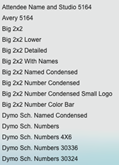
Reorganized Attendee Lookup Report options to be alphabetical to streamline finding the report you are looking for.

Big 2×2 Number Color Bar
labels will now adjust the size of the name depending on how many letters there are to better fit all names at the maximum size.


Added new Big 2×2 Number Condensed With Age for Scholarship numbering labels.


Improved Search for Events with Similar Names – If you have 2 events with similar names, i.e. Branson, Branson2, the search will now be more specific to find only the city you are looking for.

If you perform a search, then click the Modify Last Find, you will note that the search term is wrapped in a quote (“) – that tells the search to be exact.


v

Award Nominations & Auditions

Audition Manager

The Audition Manager has been updated for general usability and performance enhancements.

Improved Audition Filtering to include subtype

Added Auto Creation of Award Records from Auditions based on selected round

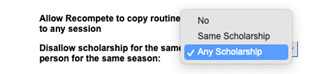
ability to detect if audition attendee already has that scholarship – Yes

Exlcude Same Scholarship

Exclude More than One

Event Manager -> Award Nominations & Auditions


The Nomination screen will now only show valid filter and reporting options based upon which type of Nomination is selected.

Select Attendees to see:

Attendee Nominations, Assign Awards/ Scholarships

Select Routines to see:

Filter, Print Routine Nominations, Assign Award / Scholarships

Event Manager -> Award Nominations & Auditions


In the Assign Awards / Scholarship screen the system now supports multiple categories at the same time. It now supports any number of nominations for any number of categories.


Award Nominations – the ability to quickly copy and paste the attendee information has been added via the icon to the right of the student info.

.

This facilitates copy/paste into spreadsheets or word documents… if that’s your jam.


Awards and Scholarships

An award can have up to 4 related awards that are automatically created/updated/deleted.

Think summer, Nationals and cash prize awards…

When assigning the award / scholarship, you will see the system assign the other related awards. If you clear the name of the recipient or reassign it, the related awards will also be updated. The related awards are identified with red “Related” text on the studio selection drop down.

To configure the multiple awards, go to Preferences -> Judging & Awards -> Awards, Markings and Scholarships. Click the “…” and select up to 4 additional awards to be assigned.


Added a notification and short cut in awards to alert when that specific attendee is attending on a scholarship. Click the alert to see the details and a link to see their current scholarship list.

This will help to help to ensure duplicate awards are not given accidentally.


Coupons / Discounts

A Coupon can now require that a deposit has been made against the registration. If a payment has not been made, it will not be applied.

Event Manager –> Coupon Manager -> Edit -> Requires Deposit for Registration

A deposit is indicated on a registration on the Summary tab as a checkbox in the Deposit field

Any Payment can be marked as being the deposit. If they make an online registration or if the Memo has the word deposit it will automatically mark that payment.


A Coupon can now be limited to the First X for the Type “Each Qualifying Attendee” and “Each Routine”

In the example coupon, once the studio registers 5 Students, they will get 2 for free (100% off)

Music & Video

Ability to export all routines with their times and category data

The export includes:

Perf Order, Alternate, Age Category, Specialized Division, Point Scale, Size Category, Style Category, Estimated Length, Uploaded Music Length, Max Time, Pad Time.

Event Manager -> Music & Video -> search -> Print button – > Time Export

Season Control -> Edit the Event -> Deposit Settings


Cleaning the Routine Name of when building routine folders to prevent folder creation errors

Event Manager -> Music & Video -> search ->Create Folders

Back Office

New fields added to the Transaction Report

Added Attendee, Routine, Paid and Balance fields to Transaction Viewer to be available for export as needed.

Back Office -> Transaction Reports

Added ability to search for transactions by city (shows all transactions including failures)

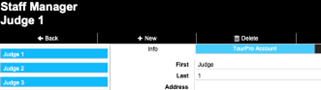
Updated Staff Manager

  • Revised Staff Screen for easier readability
  • Added Printout and Excel Exports for Staff List
  • Miscellaneous usability and format improvements

Configuration

Preferences

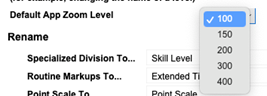
Added Default Zoom Level on Opening and Starting TourPro. This sets the “magnification” level on the screen to make everything bigger or smaller.

Preferences > Behavior -> General

Consolidated Several Routine Rules

Added the attendee types and group sizes with relevant settings that may apply to automatically determine the routine level.

Added new “50% Rule” checkbox to enable this feature.

Added “Which Method is used to set your Routine Levels” for more accurate Importing.

Added Percentage for Leveling if Average % is used.

Preferences -> Behavior-> Routine Rules

Backstage iPad

The Backstage iPad screen has been refreshed!

The updated screen features more routines per page to allow for less scrolling. As you click on the routine the details for that routine are displayed in the bottom area.

A new “Select Routines” button lets you enter a range of performance numbers, select a session, or “Show All for Event” – click the button for your desired search.

When you click on a routine for example to check them in, the bottom portion populates with that routine so you can update the check-in status (no /yes), Props or Costume Color (so your lighting crew can use a complimentary color), log issues or notes, or see the adjudication.

If you aren’t using a backstage check-in monitor ask us how to set this up! Your dancers can see a tv screen where it tells them if they need to check in or if they already have. From the iPad you click No to get them to show up on the board as Please Check In, and click Yes when they have checked-in.

These changes are all designed to increase responsiveness so you will experience less lagging and a better experience.


Web Version


https://yourcompany.mydanceregister.com/tourpro


The web version is available from any desktop computer or iPad and looks just like the Full desktop version. To access it use the link format show above – just add /tourpro to your Studio registration portal. You will be prompted to log in – it’s the same user name and password you normally use.

Updated for Speed! Using the new web version is now almost like working on the local version. There’s only a couple of pages where it take a bit longer like the Registration Summary page – but we’re working on it!

We’ve fixed many of the navigation and printing issues. If you are using the web version and run into any issues, please submit a ticket at [email protected]

This is a great solution if you aren’t near your computer, or have temp staff or team members with limited needs.

Yes… this IS a web browser:


Mobile Director Version


https://yourcompany.mydanceregister.com/tourpro


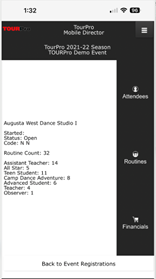
The Mobile Director version is available from any mobile phone and is customized to fit the smaller view. From here you can check city totals, review registrations and even make minor changes. To access it use the link format show above – just add /tourpro to your Studio registration portal. You will be prompted to log in – it’s the same user name and password you normally use.

While the size of the phone makes it difficult to have the entire system at your fingertips, we are adding requested features if possible. For example, if you have the need to adjust a routine price, you can now do that.

If you are using the web version and run into any issues or have specific needs, please submit a ticket at [email protected]


Media Assistant

The TourPro Media Assistant

Added “Jump To ability for Media Assistant Pro Photo mode to quickly jump to an out of order routine.

Improved Media Assistant handling of renaming photo files

Added Mini view to Media Assistant for Recording mode only.

Added Studio Letter Code to Media Assistant Pro Photo Screen

Added Shortcut to Internet Speed Test to help set expectations of upload speeds.

Added Download Latest Media Assistant in preferences to always grab the latest version. Click Settings and Updating, then click the Download Latest Media Assistant button.

Added ability to scratch a routine within the Media Assistant and pre-scratched routines are imported.

Added Finalize Upload tool for uploading to TourPro’s new Zenfolio replacement site. This manages thumbnail and keyword creation for the event.

Fixed lower thirds in Media Assistant and Mimo for showing solo only names.

Fixed Lower Thirds from not showing the list of performers if the performer quantity is greater than a Duo/Trio.

Added Manual Keyworder to Media Assistant to help in the case of assets were uploaded, the keywords were wrong, but you do not have access to the original media to import back into the Media Assistant for Zenfolio users.

Main Menu > Upload Assistant > Zenfolio Tools > Upload Audit and Manual Keyword

Added Media duplication to Recompete routines for helping with Media Assistant and redownloading at a later point in time.

Corrected the auto-creation of the TourPro / AutoSave folder inside the Docs folder for the Media Assistant logs


By |2023-09-13T11:45:41-07:00September 4th, 2023|Uncategorized|Comments Off on Meet TourPro 2024!

Introducing TourPro 7!


Version 7

11/28/2022

Internal Use Only –
This is considered confidential and proprietary and is only intended for use by TourPro customers. Sharing outside of your organization is strictly prohibited and considered a violation of your agreement.


Happy Holidays TourPro Land!

We are excited to kick off this new season with TourPro 7. Please review the new updates in version 7. This a major update to the TourPro system building on nearly 240 new features, changes and fixes. Any new feature requests will be added to our consideration at this point so that they can work their way into next years major release of TourPro. Our goal is to do a final update prior to January 1, 2023 to correct any last minute items. Some highlights include:

  • Automatically capture Routine Time Overages While Uploading Music
  • Registration Site
    • Import Roster and Routines from an Excel File and Faster assignment of Dancers
    • Skinnable Registration Header/Footer
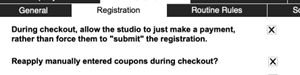
    • Ability to just make a payment
  • Major Speed Increases for Syncing
  • Graphical Event Stat Charts
  • Enforceable Deposit Fees
  • Complete Paypal Merchant Integration

    Registration Website

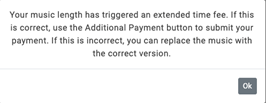
Check for Music Overages and Collect Payment During Upload

  • As the music is uploaded, if the length of the song is longer than your routine limits, it can automatically apply the “Routine Markup.”
    • A dialog box can be displayed with whatever you would like to say.
    • The Music shows that the Routine Markup is applied
    • If the markup cost is enough to make the registration transition to a balance owed amount, the “Pay” button (configurable text) will appear.
    • The Registration will remain closed.


Before Upload


Upload a Song that Triggers Extended Time


After Upload


Import or Copy/Paste into the Roster and Routines

  • Previously, Studios could import a registration from other Competitions that use TourPro. Now if they have an Excel / CSV file as an export they can use that to quickly create the Roster and Routines.


Roster

  • They click the “Import Your Students from a File”
  • An example file can be downloaded by following the “Click here to download an empty file you can use as a reference.”
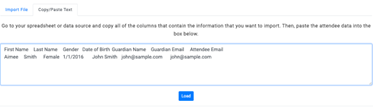
  • They can either click the file via the Choose File button, or, simply copy and paste the contents of the file.
  • The system walks them through the process
    • Select the file, or Copy / Paste
    • Load the file
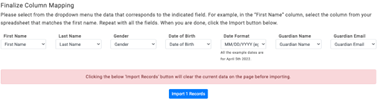
    • Select the Columns
      • For each field, select which column contains the values for that field. In the example file, the header row matches the columns that are needed.
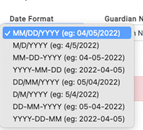
    • Identify the Date Format
      • Different systems may export the date in a different format – you can select the correct format
    • Import
    • The results are displayed.
    • If there are any errors to what is expected that column will be highlighted.
      • you did not select the correct date format
      • you tried to enter “F” for female rather than the word Female
    • If there are only a few errors it may be faster to fix them, or, fix the spreadsheet and try again.


Routines

  • The process is identical
  • The “empty file” is generated on-the-fly to contain the fields that match your system.

From the Roster

Click “Import Your Students from a File”


Import Attendee Data appears


An example CSV file


Paste into the text area, then Load

Next, identify the Field / Column Mapping


Identify the columns and correct date format


Import and voila!

Submit to save changes.


Routines


Routines Data import button


The sample file contains only the relevant fields

Warnings for Registrations with Deposits

  • If your event is using deposits, the Studio begins by entering the number of routines they are bringing.
  • When they check out, the system automatically adjusts their “reservation” by the amount of unused routines. This ensures that the event can reach capacity.
  • The “Checkout” button has been renamed to Pay and Submit
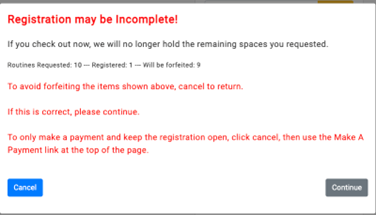
  • When they click that, they will receive a warning message that they will forfeit any unused routines.
  • If the system is configured to allow them to Make a Payment, it includes the instruction on how to simply make a payment against the registration without closing it.

Ability for Studio to Make a Payment without closing Registration

  • The Submit button on the Checkout Summary page has been renamed “Pay and Submit”
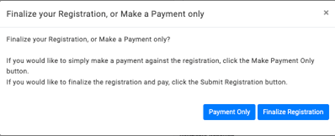
  • Unless disabled, the Studio can decide if they want to make a Payment Only, or Finalize their Registration
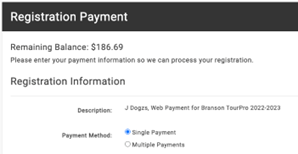
  • Payment Only will take them to enter their credit card information, and leave the registration open.
    • If the “Payment in Full” date has passed, then the Payment Only option will not be available.
  • Finalize Registration will warn the user if they have reserved more routines than they have entered, and upon submission, follow your preferences to Always Close, Keep Open, or Close the Registration if Paid in Full.


Streamlined Dancer Selection for Routines

  • Previously after adding dancers, they would have to go back to the Routine List, find where they left off, then click the Edit button again. Now, there are new Next and Previous buttons. This will greatly speed up adding dancers to the routines.
  • Imagine… you just imported your routines – now go to the first one… add dancers, Next Routine… add dancers, Next Routine… add dancers. It doesn’t get faster!

PayPal Integration

  • Full integration with PayPal has been added, similar to Stripe and Authorize.net

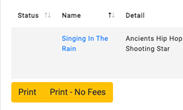
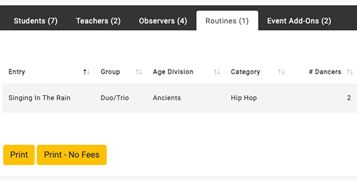
Studio can now Print Routines with/without Fees on the Registration Portal.

While adding routines and also on the checkout page, the studio can now print their routines with and without fees.


Sort Dancers While Adding to Routine

When adding dancers to a routine, you may want to sort them by name or type. You can now shift-click on the column headers to select multiple columns to sort by.


Themed Header / Footer

  • Want to change the black header to a different color, or put in a repeating image? We can now carry your branding even further into the system.

Enforced Deposit Fees

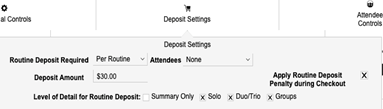
  • When a Studio makes a deposit for 20 routines, but ends up bringing less, you can now apply a penalty for not bringing the number or routines they said they would.
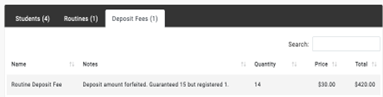
  • The Routine Deposit Penalty will appear on the registration during checkout.
  • Previously the entire deposit would be applied towards the balance, so as long as they brought enough to cover the cost of the balance, there was no real penalty. Now you can charge them for the ones that they didn’t bring.
  • The fee is recalculated every time they check out – so if they do decide to bring more, the amount of the fee will reduce.

Check the “Apply Routine Deposit Penalty during Checkout”


The “Forfeit” fee is applied during checkout.

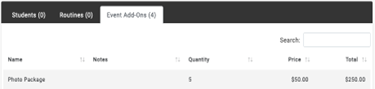
Event Add-Ons tab added to the detail page


  • Previously they could see the tab during checkout, so we added this to the detail page they can see after a registration is closed.


Reg Cutoff Can Be Renamed

  • If you are showing the Reg Cutoff Column on the New Event tab, you can change the name to something else.


Student Emails can be captured

  • Currently the students “guardian” email can be captured for processing of SmartWaivers. In addition, we’ve added the Student Email address.
  • The student email is also requested while initiating a waiver so as to more accurately and often capture the students email address.


Added Custom Home Page Text

  • The Custom web text by Event (Season Control – Edit the Event – Web Home/Deposit) on both the “Start A New Registration” page and “Open Registrations” page. This text appears under the Event Name


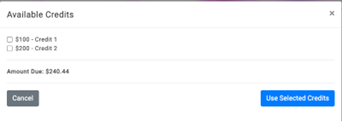
Ability to Not Show Studio Credits When Going to Checkout

  • When clicking the Proceed to Checkout button from the Routines page, the system automatically shows the credits that are available to the studio.
  • The studio still has the opportunity to apply credits by using the Show Credits button.
  • You can prevent the automatic showing of credits by going to:
    • Preferences -> Company Info -> Web Preferences (bottom right)
    • Search for the word credit – set “do_not_prompt_studio_credits” to 1


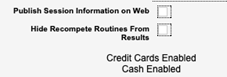
Ability to Not Show “Recompete” routines in Studio Portal Results

  • If you run “battle” type events, you can prevent the “battle” routines from appearing in the Studio Portal.
  • Season Control -> Edit Event -> Select “Hide Recompete Routines From Results”
  • This is on a per event basis

Events are now listed in ascending order on the Studio’s home page.


Non-Binary can be disabled so it is not an option for attendees on the Registration Site.


Registrations

New Season Overview Capability

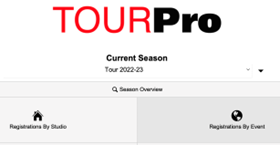
  • From the TourPro Main Screen, click the new Season Overview button.
  • By Season – Review Routine Requests and Registered routines for every event.
  • Detail – Pick which event to show various charts.
  • Attendee Limits/Capacities to Main Menu
  • Confirmed Attendee category to Attendee Capacity Breakdown (Maximum allowed minus available)
  • Routine breakdown by studio – with highlighting and filtering – deposits no actual, or no actual 60 days prior to event


By Seasion


Detail – Pick the Event


Waitlist function

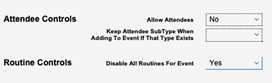
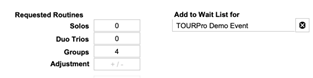
Create an Event to serve as the waitlist. You may want to put the dates in the past if you don’t want the studios to select it. In the configuration for the waitlist event you can also prevent people from adding in their attendees and routines by disabling those in “Additional Controls” while editing the Event.


Create a registration for the Waitlist event.


In Summary -> Agreements and Reservations, select the waitlist for event.


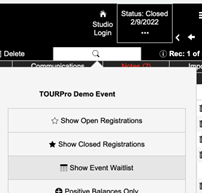
To see the waitlist – go to Registration by Event, select the event. From the magnifying glass, click the “Show Event Waitlist”


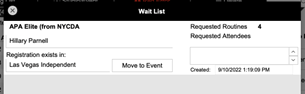
The waitlist for that event is displayed.


You can see all the waitlisted registrations and click the Move to Event to move them from the waitlist to the


Fixed the highlighting in registrations for event to highlight the history button correctly if they have other events for the current season


Green indicates they have other registrations for this season – the first number is the number of registrations for this season and the second number is the total registrations in the system.


Click the History button to see the detail.

Registrations by Event – Select the Event – Reg List

Email When Studio Imports from a Partner

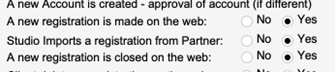
You may receive an email notifying you when a Studio has imported their registration from another TourPro customer.


Preferences -> Behavior -> Registration -> Email Notifications

Invoices now include attendee fee total, which includes the sum of competition, convention, and addon fees instead of just an individual’s fees to attend.


Registration / Financial


Add-ons and Adjustments can now apply to a specific category (Student, Teacher, Observer or Routines) to adjust amount owed by category. This allows for an adjustment of fees to be calculated against before coupons are run OR for a manual adjustment of fees without the need to override any particular object such as the routine fee.

Ability to track attendee deposits by specific type.

If you select a type of deposit required for Attendees, you have the option to select All Student Types (All Teacher Types, All Observer Types). Previously you could only select the total number of Students / Teachers / Observers. This feature combined with the attendee limits will allow you to discontinue reservations for specific attendee types. Previously the studio would only know a particular type was sold out when trying to add the attendee as the specified type. Now, if there is a reservation, it will save that number of student types for the Studio. Combined with the feature below, you have full visibility and control of all attendee subtypes.


Registration Website will Show

Updated Agreements and Reservations Screen


Registrations -> Summary Tab


  • Is updated to a card view rather than popover to improve performance
  • Now stores the “Waitlist For” selection
  • When making a registration for an event that has reservations, the system will automatically take you to this screen to enter the limits for the new registration
  • Now shows breakdown of Attendee Types if configured

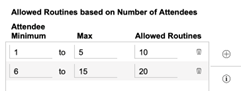
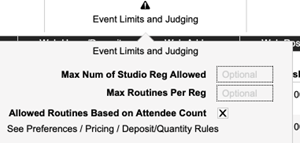
The number of routines allowed can now be set based on the number of attendees they are bringing. For example, if they are bringing 10 attendees then they are allowed 20 routines, but if they are bringing 50 attendees they can be allowed 100 routines. The system will limit them, but you can always override by setting a value in the Registration Summary -> Agreements & Reservations.


As they add or remove attendees, the limits are automatically recalculated.

Preferences -> Pricing -> Deposit Quantity Rules


Season Control -> Edit Current Season -> Edit Event

Select Allowed Routines Based on Attendee Count


If you do Conventions and take Deposits but want to allow 0 Routines?

The “Cash/Check” option can be renamed to “Convention Only”

Set Web-Preferences “Allow Studio to enter 0 Routines for Deposit” to 1


Competition Exempt.

You can select if a particular attendee type should be Competition Exempt – they will not be available during selection of dancers in the routine. For example one-day participants or based on age.


Preferences -> Pricing -> Tiers & Attendee Fees -> select the Attendee Fee -> select Comp Exempt.


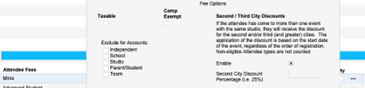
Exclude Attendee types by Account type.

In the same area you can also exclude the specific type of attendee for specific account types.

Automatic Routine Leveling based on Dancers in the Routine

If you are still having your studios select the level of the routine, there are new options for the system to automatically select the level for them. Please contact us for assistance if you are interested in this feature.


Sending Invoices Prior to Registration Close… When sending an invoice to a registration that is not closed, the system will update the pricing before sending the invoice. However, please note that if you send an invoice prior to payment and closing of the registration the interim invoice may not reflect the final amounts.


Registration / Communications

Form Letters/Templates

(Event Manager -> Form Letters)

  • Insert Merge Code drop down menu
  • Added Used, Available, Not Yet Available and Expired credit tags to form letters allowing for clear communication of an accounts credit availability. Note that they can also see their credits from their Account page if this is enabled.


Fixed 5160 Routine Labels for 3 across and 10 down printing

– Registrations by Studio -> Communications -> Labels


Registration/Notes

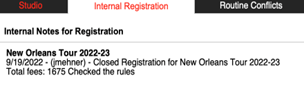
Registration Notes now automatically logs every time the registration is open / closed along with the total fees at the time and whether or not the Checkout Rules were run. This can be disabled in Preferences -> Behavior -> Registration


Added sticky note capability to the registration notes to keep the most important notes at the top of the list. Click on the Star icon to denote it as a Sticky Note.


Registration / Attendees

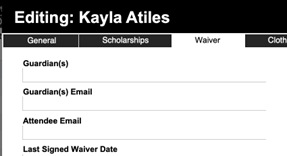
Added Attendee Email field to Attendee/Attending Records. Click on the attendee and go to the Waiver tab.


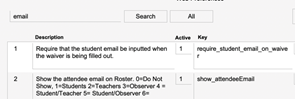
To enable attendee emails, go to Preferences -> General -> Web Preferences. Search for email


You can configure the system to collect the Student (teacher/observer) email on the Registration screens and also during the waiver process.


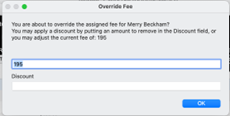
Corrected a display issue with fee override dialog boxes for teachers and observers to show Fee and Discount simultaneously.


  • Click on the Fee to display the Override.


Attendee Errors can now be seen in Season Registration List View for quick auditing.


Registrations by Event -> Reg List


Registration / Routines

Minimum Age for a Group Size – you can now enter a minimum age of the performer for a routine size – i.e. no 6 year old in a group.


Preferences -> Competition -> Routine Group Sizes…

Automatic Detection of “Too Similar” Routine for a Dancer – This preference will disallow the same dancer from performing in two routines of the same age, size and genre. For example, if you are in one Teen Jazz Small Group you may not perform in another Teen Jazz Small Group.


Preferences -> Behavior -> Routine Rules

Minimum Number of Routines Per Registration – this setting will let you set a minimum number of routines that each registration is required to register.


Season Control à Edit the Event -> Event Limits and Judging.


Scheduling

Date Warning – Added warning on the Session builder if a sessions date is set to something outside of the event’s start and end dates

Schedule Lock – Checkmark this when you are ready to freeze the schedule and performance order.

  • When you enter the Performance Order Editor, the system will automatically check and restore the routine’s performance order, date, time and session, as well as the Session information for the Event.
  • You will be unable to click on many of the feature items – simply unlock and then re-lock once any needed changes are complete.

Competition Manager – Edit Existing Performance Order


Color Coding is added to the Age Category – simply set the color in your preferences.


Preferences -> Competition -> Competition Age Divisions


In the Performance order Editor the Age Division will show the color of the Age Division.


The Show Planning Aid will now support events where Specialized Divisions (Levels) are not used.

Competion Manager -> Create Performance Order / Schedule -> Blocks -> Reports -> Show Planning Aid

Added new sort: AgeDiv-AvgAge


Competition


Competition / Competition Monitor

Quickly “Average” a Missing Judges Scores

Ever had a missing judge and had to calculate and enter their scores while they were absent? Click this button to quickly “average” a judges score based on the scores that have been entered.


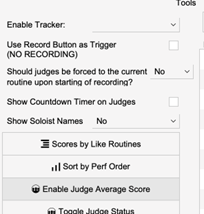
In the Tools menu, click “Enable Judge Average Score”

On the right side above Set to Record, click the Fill-in Missing Judge Score. Make sure you do this after all judges have completed their scoring.


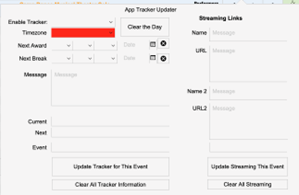
Mobile App Updates for the Tracker and Streaming can be updated from within the Competition Monitor.


Under Tools, click to Enable Tracker


The Tracker Menu Appears


Set the Timezone


As you “Set to Record” the system will automatically follow along.


You can now also set the Streaming Links from this menu.


With these changes, the “Live” system is only needed for Voting within the app if you use that feature.


This requires that the tabulator is configured with two internet connections. Please contact us for assistance.

Added Routine Makeup Errors to the Competition Monitor to help the Tabulator catch accidental errors.


Competition / Judging

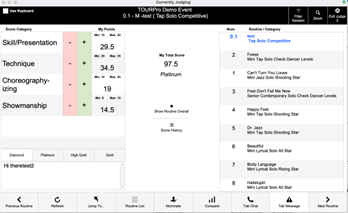
“Easy Tap” button allows judges to quickly set the routine score in the range they desire – i.e. Platinum. Once they have the initial score they can adjust using the arrows or by entering a specific score.


To enable this,

Preferences -> Behavior -> Judging -> Enable Tap Score -> “Easy Tap”


Configuration

In Preferences – >Judging & Awards –> Judging

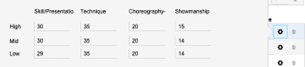
You will find the Judging Categories, and Designations. The system will automatically set the values that the judges will be assigning based upon the percentages of each category.


When you click the icon, the system will refresh all of the settings. Click on the to see the settings for each Adjudication level.


For example, my Diamond level would assign the following scores for each score category depending on if they select High Med or Low.


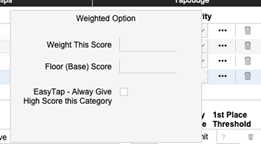
If you wish to always set a particular category to the highest level, locate the … icon in the Judging Categories area. Select “EasyTap-Always Give High Score for this Category. For example, some areas of the country usually give a 10 for “Appearance.”


If the automatic generation of the values does not work for you, click the “Do Not Automatically Refresh Individual Scores” at the top of the Designation Table. You can then manually enter the scores you would like the judges to give for each designation and range.


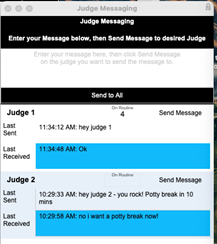
Tabulator / Judge Messaging with Specific Judges


The Tabulator can now communicate to a selected judge and the judges can now communicate to the Tabulator without including the other Judges.


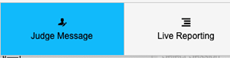
From Tabulator – Click the Judge Message button to display a list of the current judges.


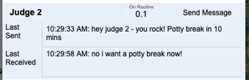
In the top, you can enter a message to send, then click the Send Message button to send that message to a specific judge. Or, Send to All to send to everyone.


To clear a message, click on the blue highlight.


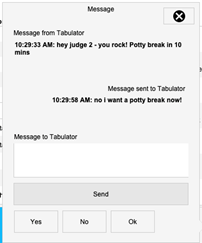
From the Judge – the Tab Message will turn blue when they receive a message, or they can click the button to send a message to the Tabulator


The most recent message is displayed in a “texting” view – they can also just click the Yes No Ok button to send that.


Compare Button has been moved to the lower area to make it more visible.


This button shows the Judges how they ranked similar routines and optionally the total score.


Preferences -> Behavior -> Judging/Scoring


Locate the Hide Judge Comparision Tool setting.

You can either check to hide the feature, or, click to select the criteria to determine the routines to Compare. For example, if you select Age-GroupSize, then routines of the same Age category and Group size would be displayed.


To hide the routine total score, select a setting that is indicated with “Hide Totals”


iPad Performance Improvements


The interface and scripts have been adjusted to improve the speed when judging.


Please remember the Tabulator computer should always be plugged directly into the router.


To improve performance further, you may also want to use iPad – ethernet wired adapters.


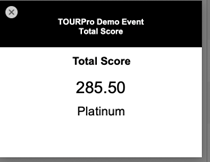
Click Show Routine Overall to see the Total Score


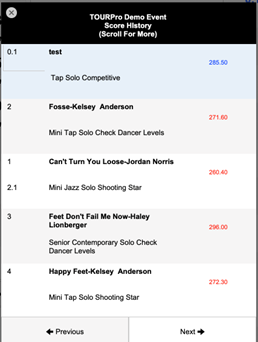
Click Score History to show recent routines in order. Use Next / Previous buttons to navigate as desired showing 10 routines at a time.

Nominations Button On Tabulator shows the count of nominations for a routine. Click on the button to show the detail of the nominations

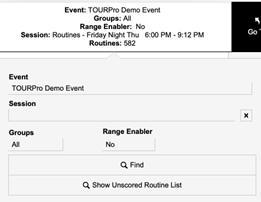
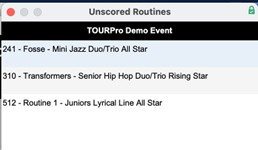
Quickly Show Unscored Routines – click on the Filter area on the top left corner of the tabulator, then “Show Unscored Routine List”


This opens a new window with just the unscored routines and will not interrupt the tabulator screen.

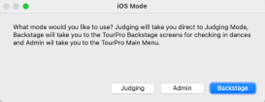
When Connecting an iPad, the menu has been adjusted to more clearly identify the intended action.

Ability to Assign Nominations for Particular Judges with Fast Data Entry Screen


Competition Monitor -> Tools

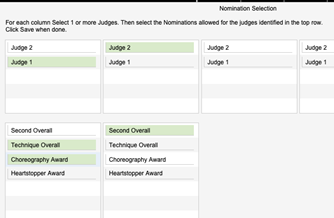
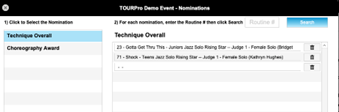
Nomination Method – Specific Categories for Each Judge


The Nominations button appears.


In each column, select the Judge(s) that should be allowed to nominate for the items beneath the Judge Selection.


For example, Judge 1 will be able to select Technique Overall and Choreography


And Judge 2 will be able to select Second Overall


You may also enter a range of routine numbers to limit force the selection within the range.


Click the Save button at the bottom of the page.


On the Judges screen, the Nominate button appears in blue.


Click on the Nominate button and the entry screen appears.

The first category is automatically selected.


Click on the Routine # entry box (top right) then search. If the routine fits the criteria (size, age, level, etc) then it will automatically be added as a Nomination.


Continue by clicking each category until complete.


Configuration

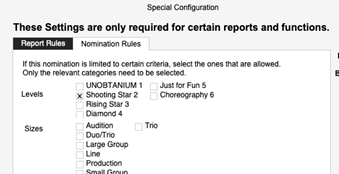
Preferences -> Judging & Awards -> Awards, Markings and Scholarships

  • Click the Pencil icon
  • Click the Nomination Rules tab
  • For any items that are required, checkmark only those items. For example, in this example they would need to be a Shooting Star Level. You can pick from Level, Size, Age, or Genre, and you can pick multiple items, for example, all groups.


Competition / Reporting / Nominations

New Combined Report

You can now select multiple Award Presets and combine them into a single report. This is useful if you have a number of reports with just the “top 1” and you want to combine them into as few pages as possible.


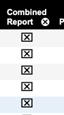
  • Select the Combined Report checkbox next to the presets that you want to combine.
  • To quickly select many, click on the first, then click on the triangle of the last report you want to select to quickly checkmark them.
  • Click the Create Combined Report button
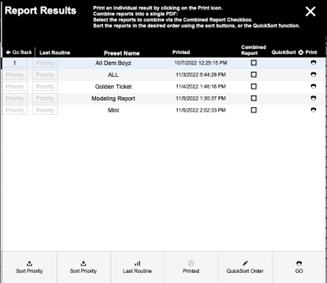
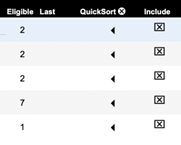
  • The list of presets are displayed – you can sort, exclude, or use the QuickSort column to quickly identify the order you would like to print the reports.
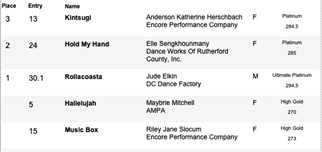
  • When you click Go, each preset it run and the results are displayed on the format of report you selected (Simple or Detailed).


Competition Manager-> Competition Award Presets


Saved Report Results

Every time that a report is run, the results are now saved. You can see what the result were at a specific point, and you can also combine reports into one PDF for posting on the web.


Competition Manager-> Competition Award Presets


The entire list of reports that were run are displayed with the date/time of the last time they were printed.


Click the Print icon to reprint that report.


You can also click the Combined Report column and select the desired order to create one big PDF file of all the results in the order you like.

New Show Order Reports

  • Schedule Outline Detailed
  • Schedule Outline REVEL
  • Schedule Outline NYCDA 2 Column
  • Virtual Critique Show Order Report
    • Export this as Excel and send to judges to remotely critique user uploaded videos
  • Title Solo Stat Report
    • Schol #, Gender, Name, Age, #


Remember you can click the Enable Custom Lists button to make the drop-down list only contain the reports that are relevant to you.

True Talent – Results by Category report can be run by “Overall” or by “Detail”

  • Overall will combine genres so it is run by Level/Age/Size
  • Detail include genres so it is run by Level/Age/Size/Genre


This is a powerful report in that you can use it to run your entire event.

  • Ability to sort by performance order / order of occurrence or by your preferences
  • Ability to show/hide scores
  • Ability to show/hide unplaced routines

New Options to Identify the Number of Top Scores for Reports


  1. Ability to Enter a Top X on the Preset Screen
  • In Award Presets there is a new Print column to enter how many routines you would like in your top x.
  • The best way to use this is go to your Award Presets
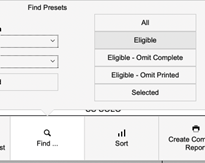
  • Click Count Routines / Set Eligible and Last
  • Click Find – Select Eligible
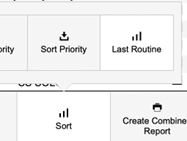
  • Click Sort – Select Last Routine
  • The list of your presets are now presented in order of performance with the number of eligible routines per reports.


  1. You can also edit the Preset and click the 2nd Limit button. You can adjust the report to select the top x routines in several ways.
    1. If there are at least x routines…

      For example, normally you would run Top 10 but if there are 50 in the category then you want to do top 20.

    2. If the type of event is (from Season Editor)….

      For example, perhaps for Nationals you do top 20, but normally you do top 10.

    3. You can also specify the system to ask you how many while the preset is being run.


From the Preset Editor…

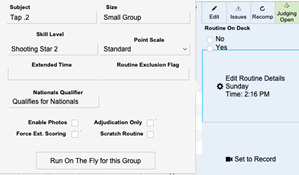
Shortcut to run the On-The-Fly for the current routine division.


In the Competition Monitor/Tabulator screen, there is a button to “Run On the Fly for this Group” in the Edit Routine Details pop-over.


Click this button to find all similar routines and populate the On The Fly report with the results. From there you can print.


This also works well with the feature below – Custom Competition Categories

Custom Competition Categories

In Edit Existing Performance Order you can set a “Comp Group” for just that routine.


You can type in the Override whatever you want. On subsequent routines, the name you entered will become an option. The category you enter will appear on selected reports. Use this with the On The Fly capability to report on your subset of routines.

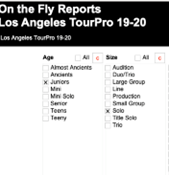
New Report Options for On The Fly

Competition Monitor /Tabulator -> On The Fly


The “Grand Champ” report is typically a Studio Competition report, for example, “the top 5 scoring routines from all studios”


If you have a need for a special “dance off” contact us for assistance.


On The Fly Report Presets

Competition Monitor /Tabulator -> On The Fly


If there are searches that you often do, you can save them as a preset.


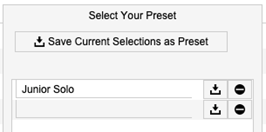
For example if I’m looking for my Junior Solos, I can configure the search. Then… click the Presets button, and “Save Current Selections as Preset.


Give it a name you will recognize…


And it will appear when you select Presets.


If you want to delete the preset – click the


If you want to resave the preset with updated selections click the


Nominations Filtering / Printing / Assignment Enhancements


Event Manager -> Award Nominations & Auditions


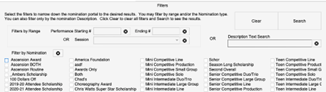
  • You can now select multiple nominations at the same time to filter results.


  • Most reports have been slightly reformatted to support section headers for each nomination category.


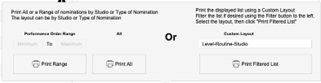
  • To print a range or all nominations use the buttons on the left. To print the filtered list, select the report format on the right, then Print Filtered List


  • Assignment of Nominations from the portal on the left has been optimized for data entry. Click on the routine to add a nomination, then the Nomination data entry box appears. The location of the routine in the left portal remains where you left off; previously you would have to scroll back to where you were.


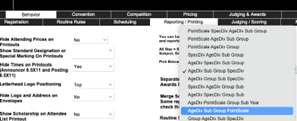
Added “AgeDiv, Subject, Group, PointScale” as a new option for displaying routine summary in reports.


Preferences-> Behavior-> Reporting/Printing

New Method to Sync and Load Scores

Previously all scores were synced as individual records when you did a sync. Given 500 routines, with 5 categores and 3 judges, on average 7500 score records would need to be created and synced across all devices – this took a long time. Now we are generating “score packets” that contain all the scores in a single file that syncs in seconds. The scores are unpacked and updated automatically.


There are a few things that you need to know.

  • When you exit the Competition Monitor / Tabulator, a copy of all the scores are saved.
  • When you enter the Competition Monitor, the system evaluates all of the scores that it knows about, and automatically merges based on the last modification date.
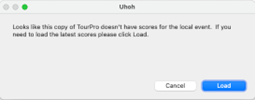
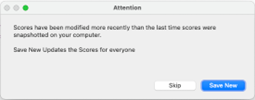
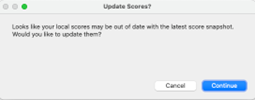
  • Whenever you are presented with a dialog box, you will select the default option.
  • At the bottom of the Competition Manager you will see the Local Event Score Loader. Generally you should not need to go into this utility. You can see for each event which ones you have scores on your computer and which ones there are scores available. You can click on the Score Snapshot link to see all of the versions.
  • Scores need to be processed on our server to become available. We run the process regularly, but scores will not be instantly published.


The same rules apply for multi-room events – create the scores on the “master” room, then sync. With the second room, sync to download the score records. As the competition continues, you can sync as needed to copy the updated scores from one room to the other.


If your system does not have any scores for that event it will ask you to Load them.


If you have updated scores that need to be save, it will ask you to save them now. Generally click Save Now.


If the scores on your computer our not current it will ask if you would like to update them. Generally click Continue


General Improvements

  • Award Presets now will always use the tie breaker score to put the “Technically higher” scoring routine (whether tie breaks are used or not) higher on the report. So while two routines may tie, the one on top performed better based on the tie break categories.
  • Improved Running Presets from an iPad
  • Improved overall performance of running Award Presets, especially when calculating and breaking ties
  • Improved performance of “On-the-Fly” report.


Event Manager

Registration Dashboard

Added Export feature in Registration Dashboard by Reg


Default export contains:

Unique key Registration

Unique key Studio

Date Registration Created

Studio Name

Studio Owner First / Last Name

Studio City, State

Email address

Phone 1, 2

Social Media Website

Total Routines

Total Students

Total Teachers

Total Observers

Total Fee

Remaining Balance

Added Multi-Reg flag in Registration Dashboard to show if a studio has registered more than once in a found set (e.g for the season)


Attendee Lookup and Numbering

Added support for searching Attendee lookup for attendees with addons

In Find mode, click the Attendee Addons button

New Reports / Labels

  • Teacher Thank Yous report


  • 4×6 style Dymo labels for scholarship numbers


    (Reports)

  • Big 2X2 Number Condensed Small Logo


    (Multiple Scholarship Numbers)

  • Big 2X2 Number Color Bar
    • Adds a color bar at the top of the logo
  • Big 2X2 Number Condensed Small Logo
    • Biggest possible number by making the logo a bit smaller


Ability to Exclude Attendees if they are dancing below their specified age range.


In find mode, use the Add Criteria button, click Omit, then select Yes to Attending Below Age


Registration Check In

Added Preference controls to set the default sort when using Event Check-In.


Preferences -> Behavior -> General


Awards and Scholarships

Fixed Display issue in the Awards screen for the Award Recipient due to new addition of including attendees age in their full name for display in other reports/screens


Prevent the same Attendee from receiving more than 1 scholarship in the same season. Select Preferences -> Behavior -> Judging / Scoring and select Any Scholarship. This will highlight any Award/Scholarship assigned to the same attendee on the Award Screen.


“Search by Session” in Awards & Scholarships. If the current event is using Sessions, you can quickly search for awards for that session.


Exclude individual Attendees when Assigning Scholarships Numbers

In the registration locate the Attendee – click on their name and select “Sch Number Exemption”.


When assigning scholarship numbers, the person will be automatically excluded even if they are in the found set.


Coupons / Discounts

New Options include the ability to reduce the amount of the Grand Total options:

  • Less Credits
  • Less Deposit
  • Less Deposit and Credits


  • Should set on event for amount


Event Manager -> Coupon Manager


If you are using one of the “less Deposit” options but are only taking Reservations, you can specify an amount to subtract from the Grand Total amount.


Season Control -> Edit the Event -> Deposit Settings


Limit all coupons from being applied to registrations that are below a specified dollar amount.


Preferences -> Registration -> Payment/Deposit Setting -> Minimum Balance Required to Apply Coupons.

Reapply Manually Applied Coupons Automatically – Normally coupons that are not Auto-Applied are not recalculated unless you remove and reapply them. This new option allows this to be managed automatically.

Multi City Discounts for Conventions

Preferences -> Pricing – Select a pricing tier


You can enable an automatic discount that is applied per attendee for the selected attendee type.


  • The discount is applied during checkout. The system automatically checks the students for all attendance of the season and retroactively adjusts all registrations.
  • You can enter a percent to apply on the fees for the second, or third and subsequent events.
  • You can specify how to manage scholarships, and if the attendee type counts towards eligibility for the season – for example, a “one-day” may not count.


Back Office

New fields added to the Transaction Report

Added Attendee, Routine, Paid and Balance fields to Transaction Viewer to be available for export as needed


Back Office -> Transaction Reports

Updated Staff Manager

Reorganized Staff Manager for clarity.

Blue indicates a local account.


Configuration

Preferences

Updated Email Configuration

Combined two popovers into a unified page for configuration.


On the left, set which emails should be sent. In the middle columns, define additional / alternate email addresses. On the right, some emails can use a template – select which one – or… configure the default / additional message via the popup box.


Preferences -> Behavior -> Registration -> Email Notifications


Added Default Zoom Level on Opening and Starting TourPro. This sets the “magnification” level on the screen to make everything bigger or smaller.


Preferences > Behavior


General Interface


Performance / Speed Improvements

  • Syncing improvements from new Score method
  • Web Version
  • Archiving of Old Events to reduce file size and speed
  • Registration Dashboard by Event
  • If you have a server, some functions will now take place on the server.
  • Reduced size of the “Owner Pics” on the Account page
  • On-the-Fly and Presets reporting


General Fixes

  • Added manual support tools installer to Help/Info menu for judge systems


Web Version (https://yourcompany.mydanceregister.com/tourpro)

The web version is available from any desktop computer or iPad and looks just like the Full desktop version. To access it use the link format show above – just add /tourpro to your Studio registration portal. You will be prompted to log in – it’s the same user name and password you normally use.

 

The web version supports most functions with the exception of Judging and some printing functions. We’ve recently:


  • Made massive speed improvements.
  • Corrected printing for the vast majority of TourPro screens
  • Added the ability to send invoice from web version with the ability to select a template or write your own message

Mobile Director Version (https://yourcompany.mydanceregister.com/tourpro)

The Mobile Director version is available from any mobile phone and is customized to fit the smaller view. From here you can check city totals, review regitrations and even make minor changes. To access it use the link format show above – just add /tourpro to your Studio registration portal. You will be prompted to log in – it’s the same user name and password you normally use.


Judging / Backstage iPad

Update iPad dialog screen when opening to provide more clarity on the mode: Judging, Admin, Backstage


TourPro Mobile App / Web App

For Virtual Events in Live Convention Manager, added ability to paste in a list of guests to quickly build a list.


By |2022-11-28T20:50:49-08:00November 28th, 2022|Uncategorized|Comments Off on Introducing TourPro 7!

Sync Maintenance Completed

Hey Everyone,

Just a heads up that that the maintenance has been completed on the sync server so you are free to sync again.  If you get an error, please try fully quitting TourPro and restarting it.  If an issue still persists, please email us at [email protected]

By |2022-08-03T14:04:48-07:00August 3rd, 2022|Uncategorized|Comments Off on Sync Maintenance Completed

Preparing for TourPro 7 and Sync Server Upgrade

Hey Everyone,

We are preparing our servers and systems to rollout your upgrades to TourPro 7.  We are in the process of performing maintenance and upgrading the sync server and it may be offline for a little while in the early morning of Aug 3rd.

If you receive an error when syncing we recommend you login to the Web version of TourPro at:

https://XXXXX.mydanceregister.com/tourpro – where XXXXX is your companies registration site, and login using your usernames and passwords.

Please let us know if there is anything we can do to assist you while we perform this much needed maintenance.

By |2022-08-03T00:18:01-07:00August 3rd, 2022|Uncategorized|Comments Off on Preparing for TourPro 7 and Sync Server Upgrade
Go to Top